
We have ensured that communication within the system is as flexible and convenient as possible.
In Schrift, you can discuss work issues in the context of specific objects (such as documents or tasks) or simply create separate chats for any purpose. These can be personal chats with employees or contractors for face-to-face communication, or group thematic chats where entire departments, individual groups, or even several organizations within your company can be brought together to discuss joint projects.
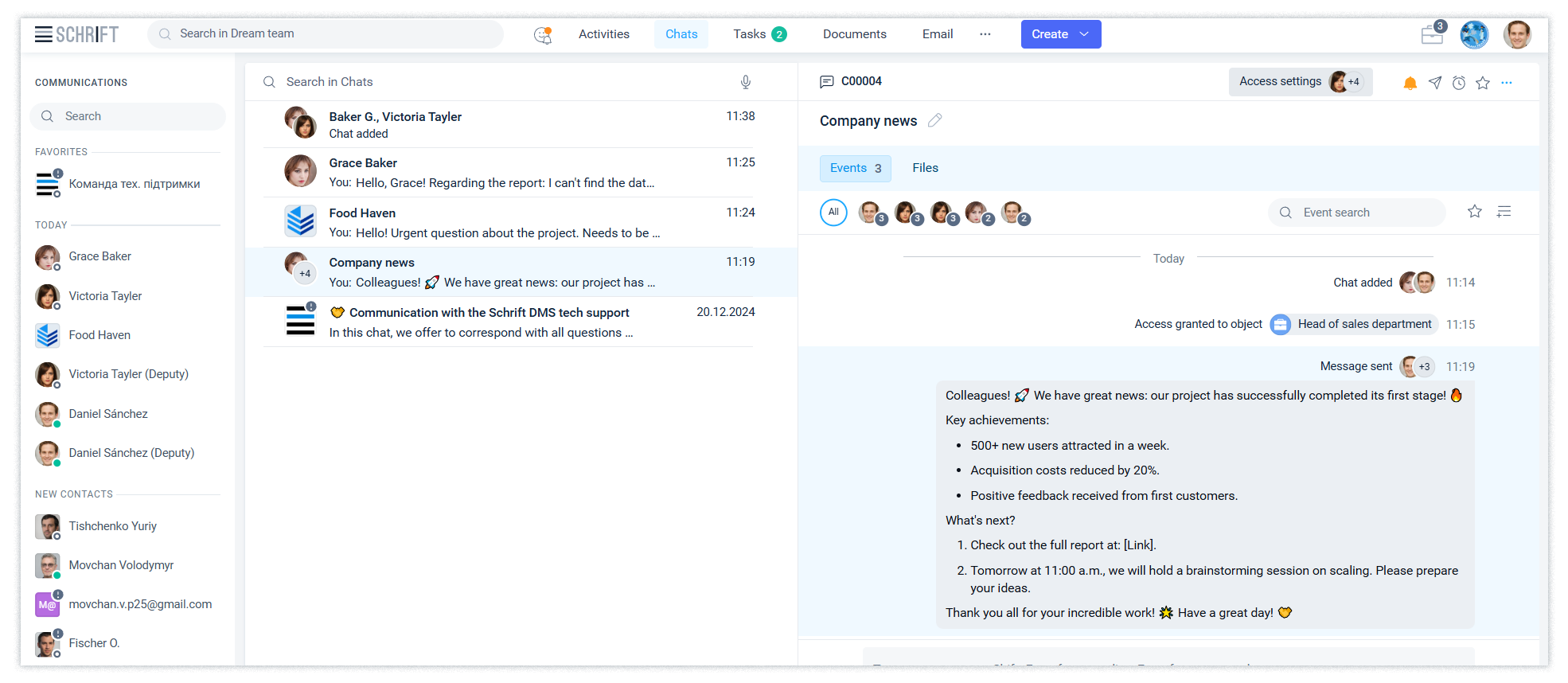
Creating a chat
You can create a chat by clicking the Create button. Specify the chat topic and select the necessary participants in the Recipients field: specific employees, contacts of counterparties, a group of recipients, or an entire department or organization, etc.
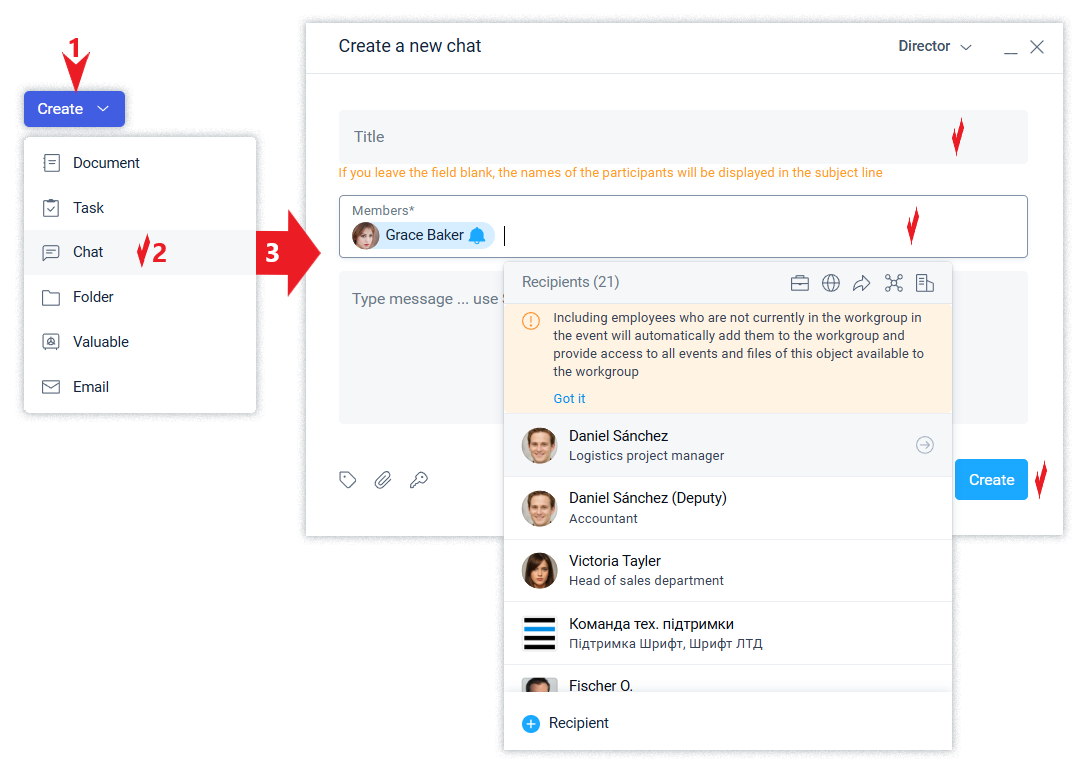
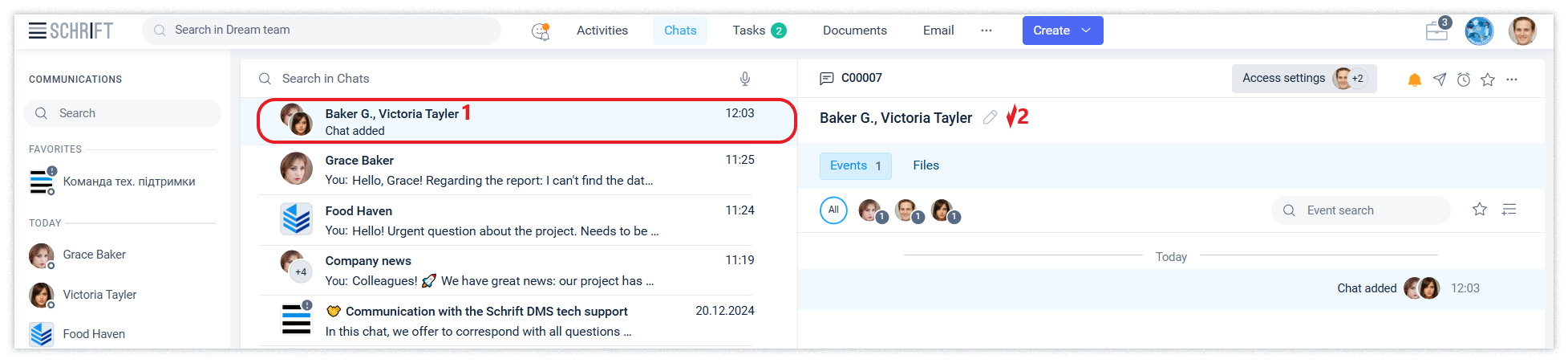
Please note: if you leave the Subject field blank, the chat name will automatically be the last names of its participants.
You can edit the chat name at any time.
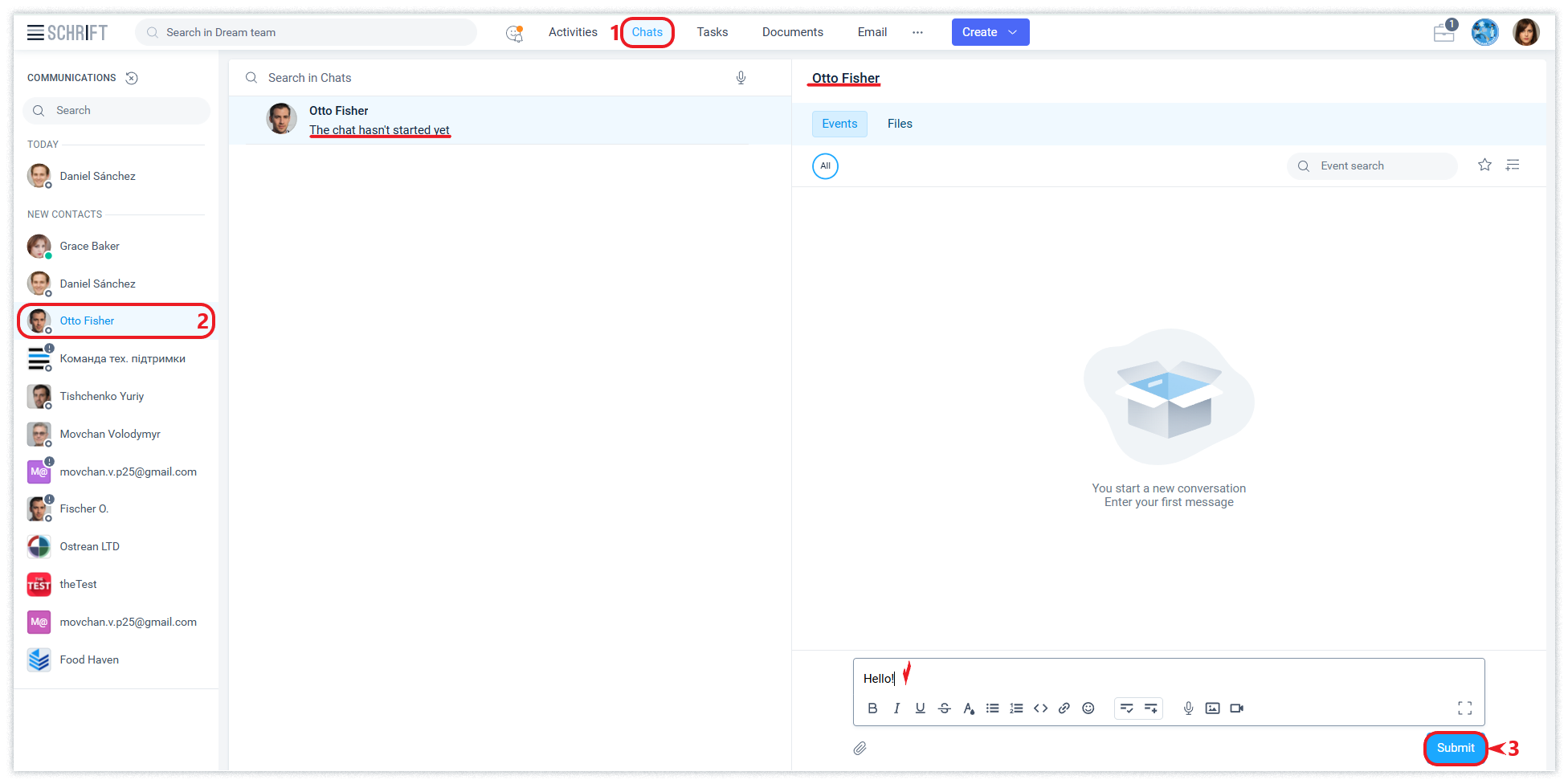
You can also create a personal chat for private communication with an employee or counterparty contact in the Chats section by selecting a chat participant from the list on the left and writing them a message.
Personal and group chats (Messenger)
In addition to themed chats, Schrift offers a classic messenger format for quick communication and informal chatting:
-
Private chats (1-on-1): A direct communication channel between you and another colleague. Such a chat is always unique for a specific pair of participants, allowing you to easily find the entire history of personal correspondence in one place.
-
Group chats: Create free groups to discuss issues that do not need to be linked to a specific project. Add two or more participants, change the group composition, and communicate as easily as in any modern messenger.
Tip: Use personal chats for quick clarifications and thematic chats for working on documents and tasks to keep information structured.
Automatic merging of dialogues
The system optimises your work by preventing duplicates. If you initiate sending a message to a user (or users) with whom you already have a shared chat (not linked to a specific topic or document), the new message will be automatically added to the existing chat.
This allows you to keep the entire history of correspondence with the same participants in a single window, without scattering the context of the discussion across several parallel threads.
Access to chat
You can view the list of chat participants (working group) in the access settings form.
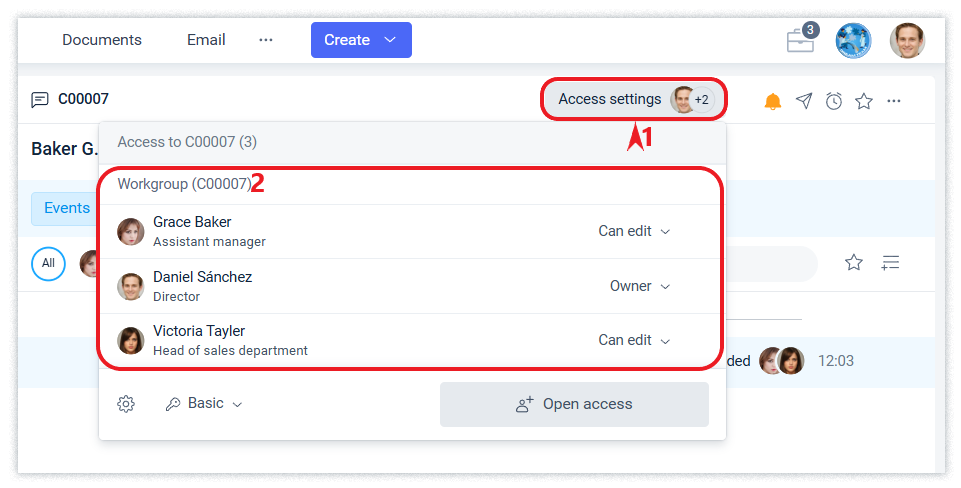
You can add new chat participants by opening access to the chat in the access settings form, specifying the new participant in the recipients when sending a message, or opening access to a separate chat event.
New messages in the chat from colleagues or contractors can be viewed both in the events section and in the chats section.
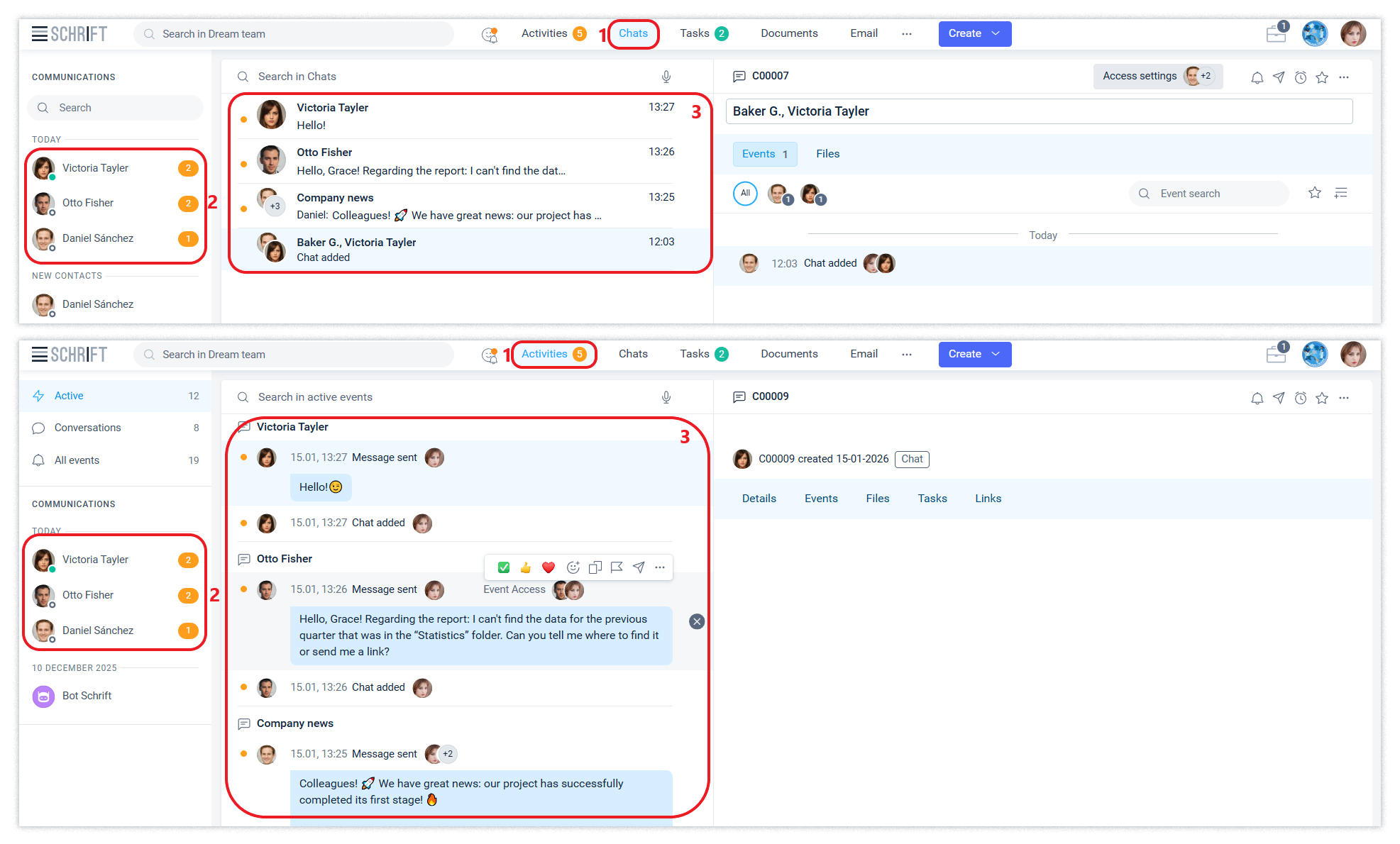
To quickly find the chat you need, you can use the contact filter or full-text search.
We recommend using thematic names for group chats-this makes navigation much easier when the flow of information becomes large.